For Arch Linux Only
- Install Lutris
- Install Necessary Dependencies
sudo pacman -S --needed lutris wine-staging giflib lib32-giflib \
  libpng lib32-libpng libldap lib32-libldap gnutls lib32-gnutls \
  mpg123 lib32-mpg123 openal lib32-openal v4l-utils lib32-v4l-utils \
  libpulse lib32-libpulse libgpg-error lib32-libgpg-error \
  alsa-plugins lib32-alsa-plugins alsa-lib lib32-alsa-lib \
  libjpeg-turbo lib32-libjpeg-turbo sqlite lib32-sqlite \
  libxcomposite lib32-libxcomposite libxinerama lib32-libxinerama \
  ncurses lib32-ncurses libva lib32-libva vulkan-intel lib32-vulkan-intel \
  mesa lib32-mesa lib32-libx11 lib32-libxss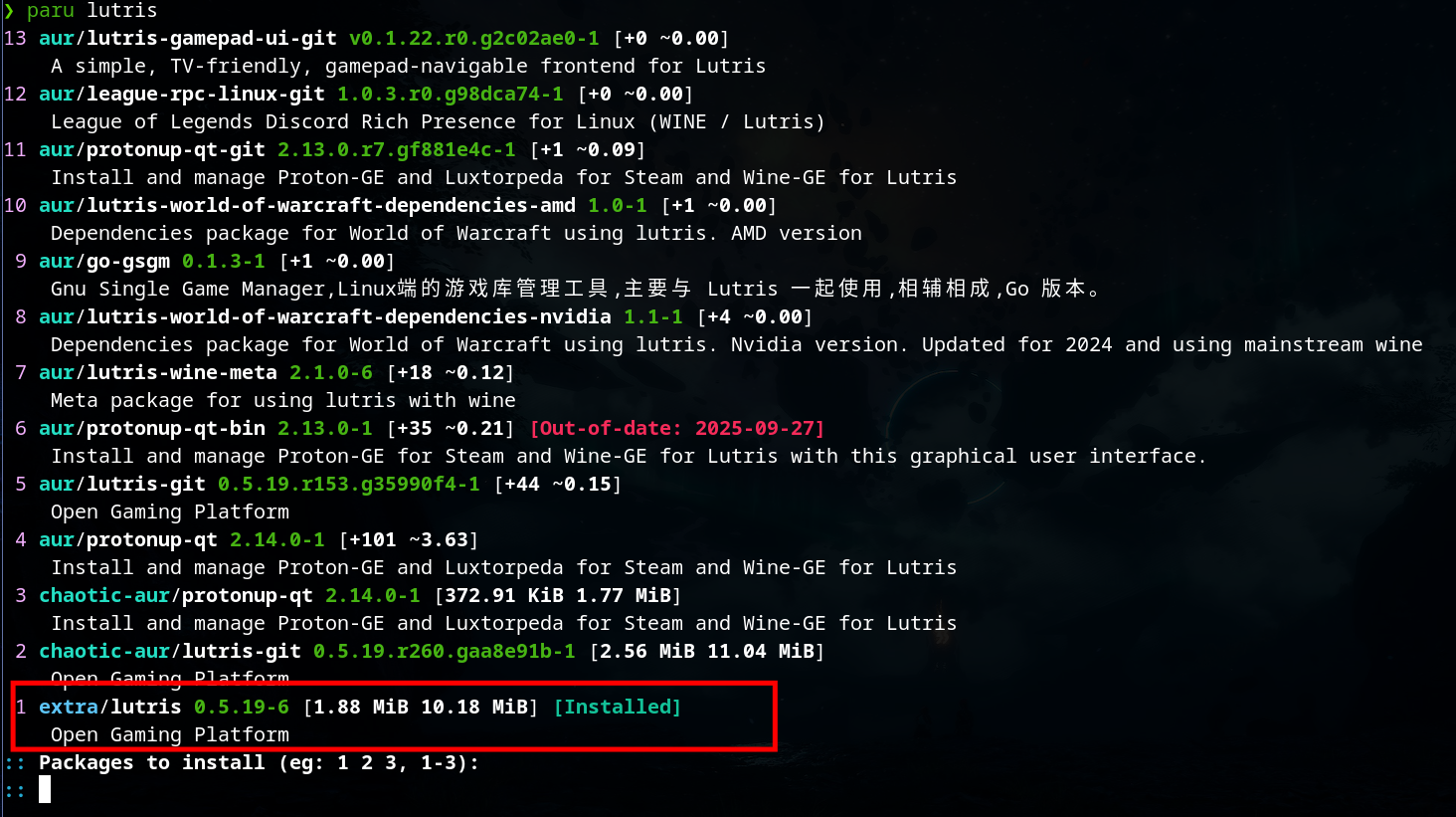
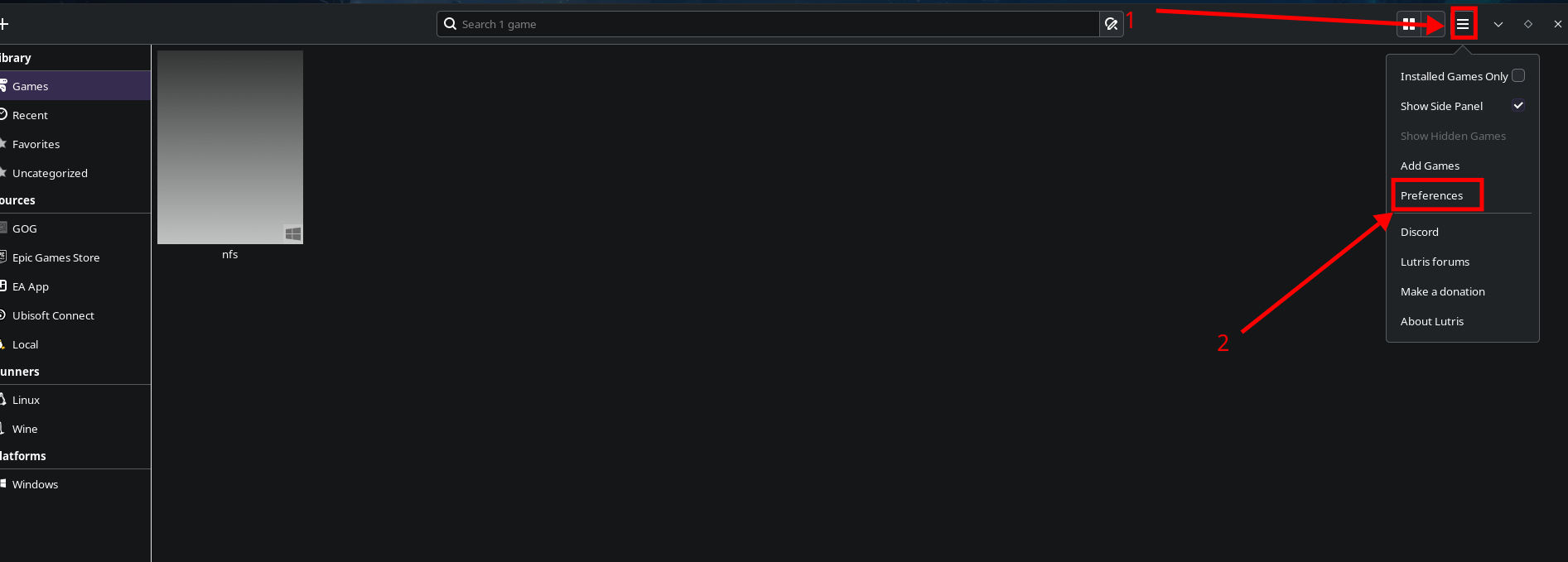
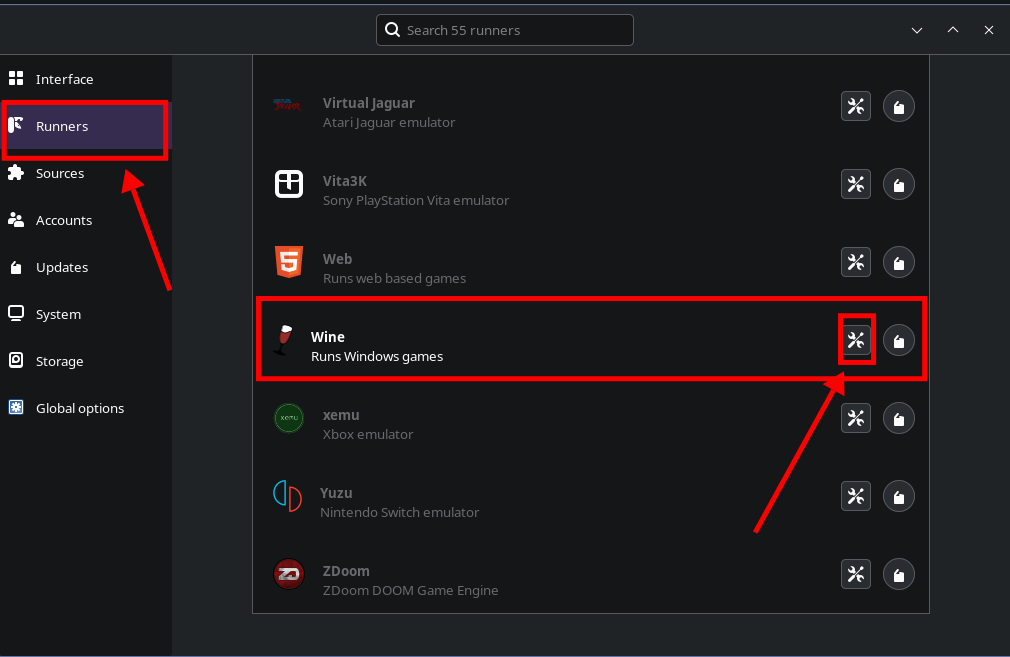
Make sure you have GE-Proton (Latest) selected:
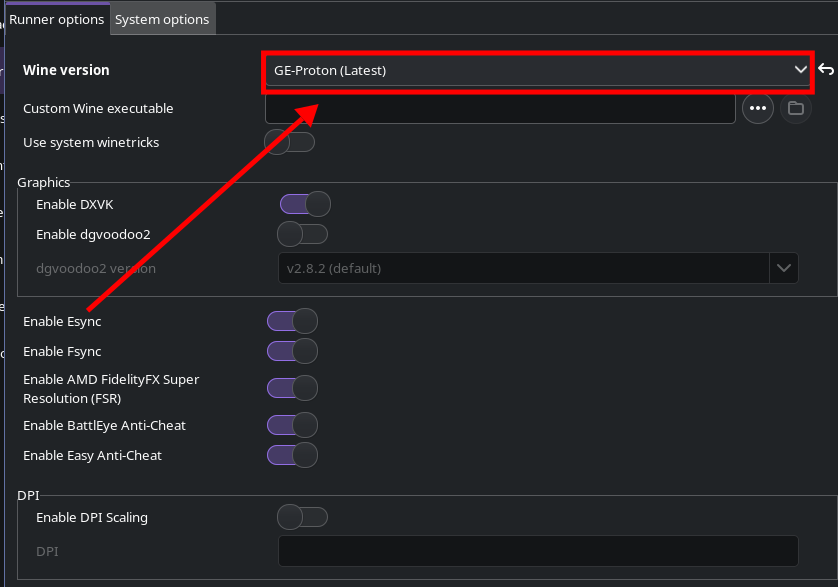
All set. Now only need to run the setup file.
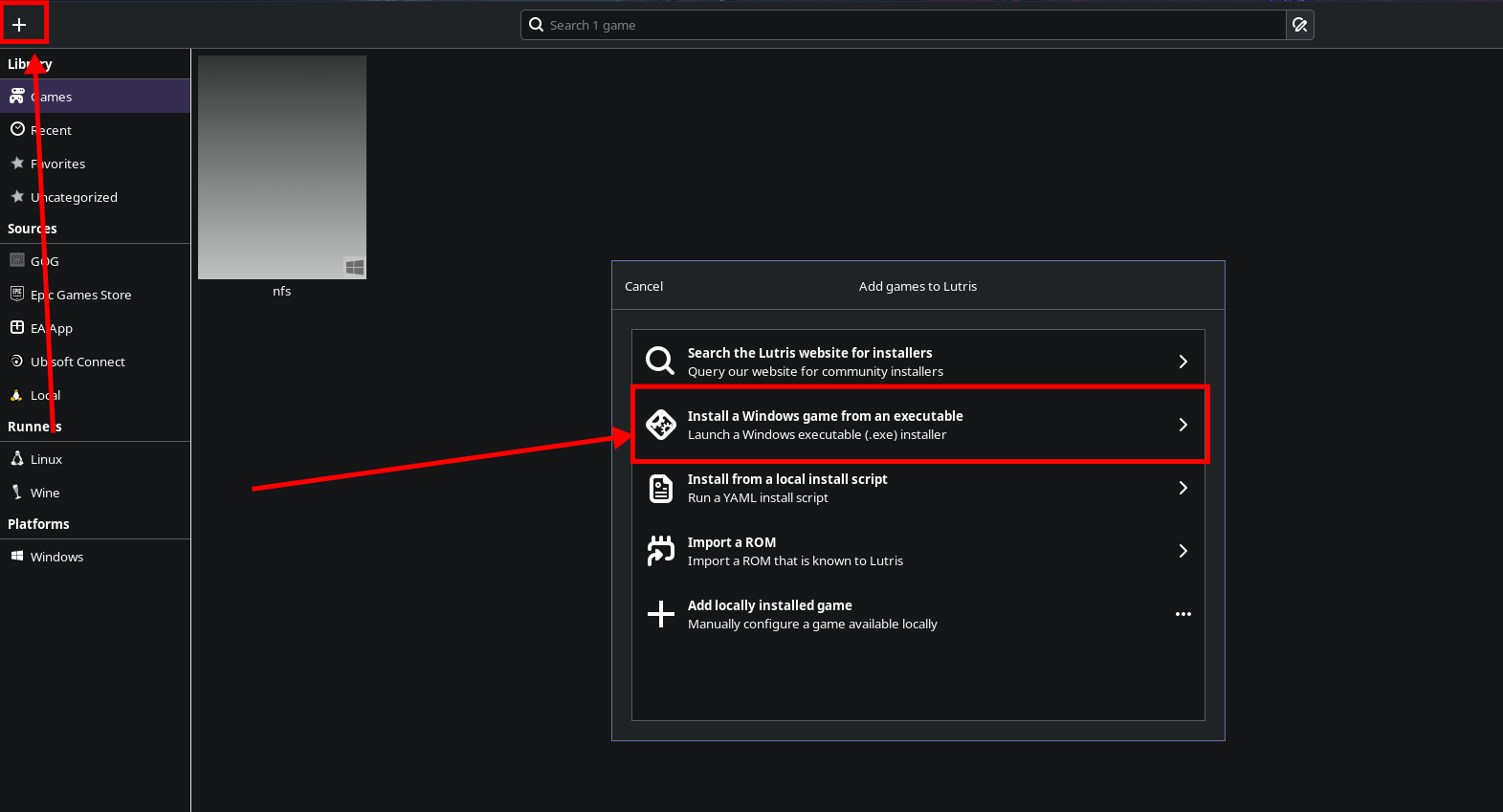
Give a name. That will be the name of the prefix aka your Windows system folder name that will contain the game.
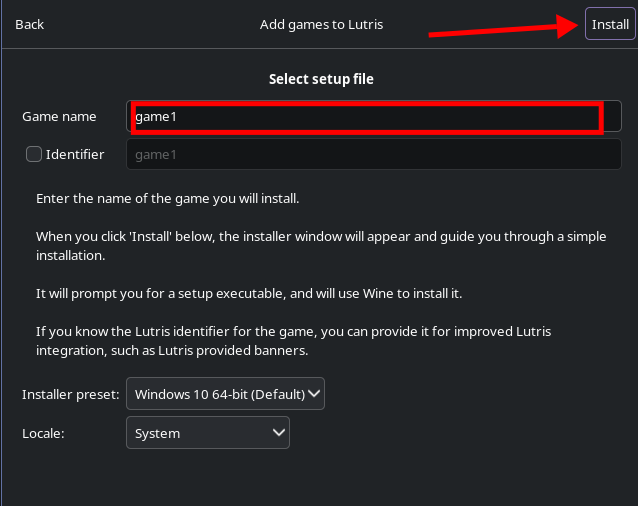
Go through Install -> Continue and then select setup file for your game. After it’s done, right click on the game and click on configure. Then:
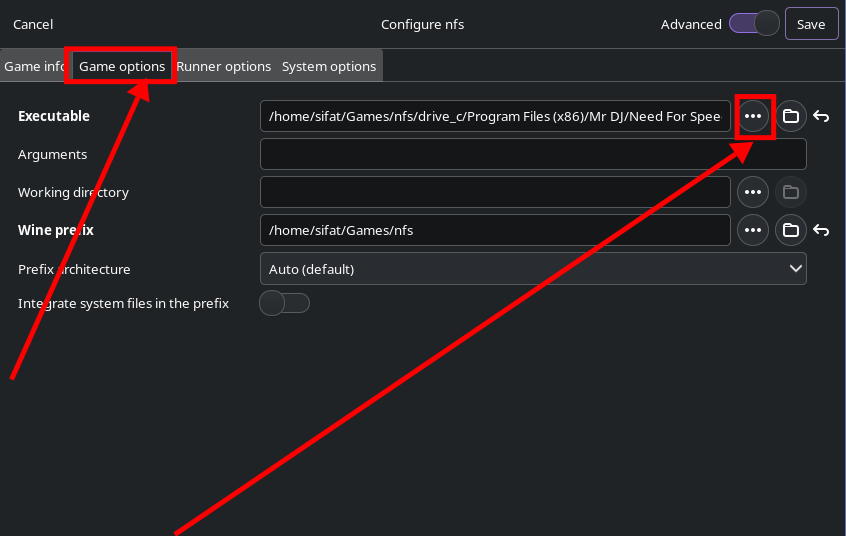
Go to Game options where you need to select the executable runner of the game.